


What are email templates?
Email templates are reusable emails that you can customize for communication with participants in Learnifier.
What are they used for?
Use email templates to customize the content and design of emails sent from Learnifier.
You can create a template from scratch or duplicate an existing template and use it as a starting point.
Who is it for?
Email templates are available on all Learnifier plans.
How to create an email template
There are two ways to create an email template. You can create a new template from scratch or duplicate an existing template.
Option 1: Create a template from scratch
- Go to Library > Email Templates.
- Select the option to create a new email template.
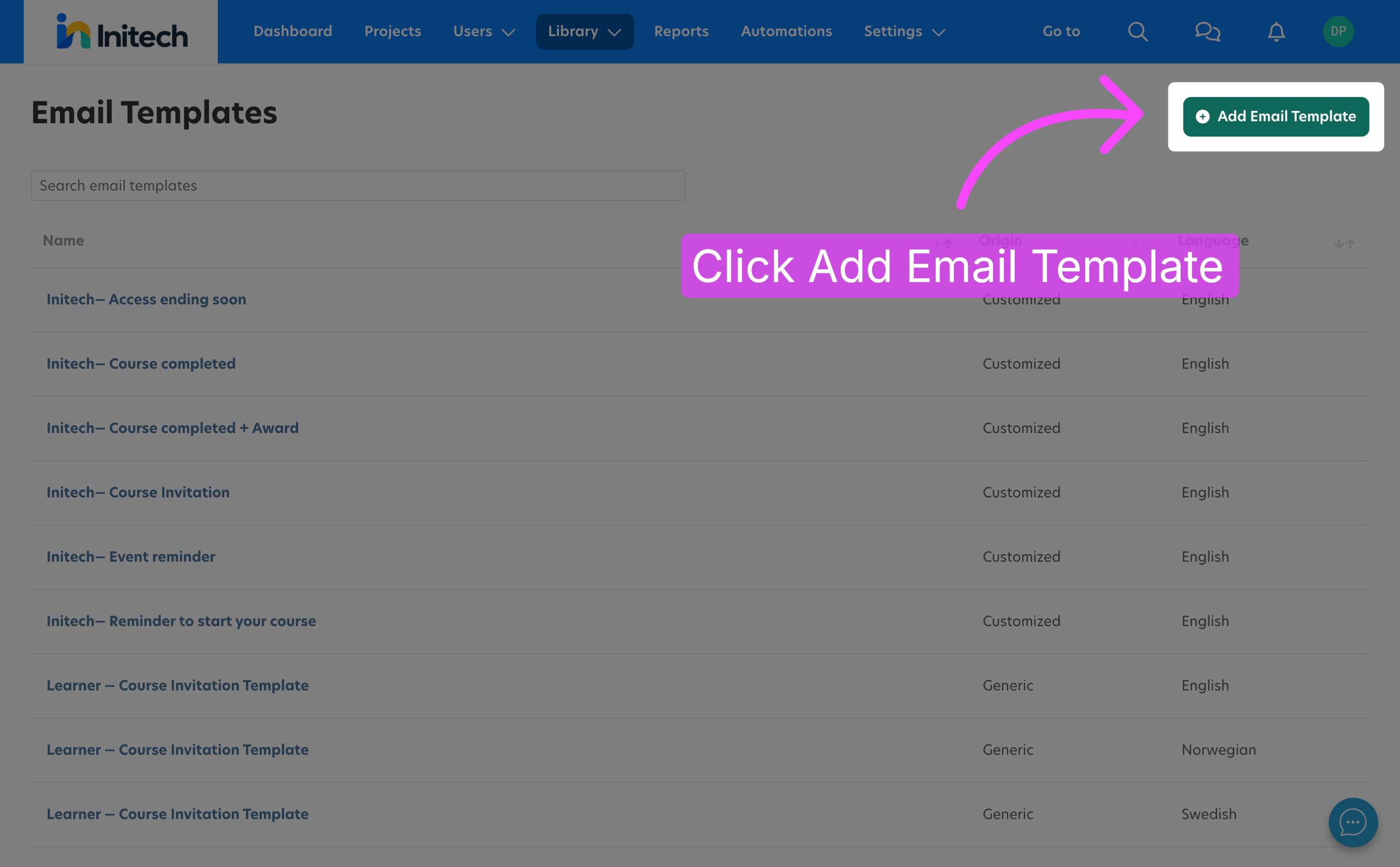
- Enter a name for the template.
- Add a description that explains what the template is intended for.
- Save the template.
- Open the email editor and add your content.
- Save your changes.
Option 2: Duplicate an existing email template
Duplicating an existing template is useful when you want to keep its existing structure and variables while changing the content or design.
- Go to Library > Email Templates.
- Open the email template you want to use as a starting point.
- Duplicate the template.
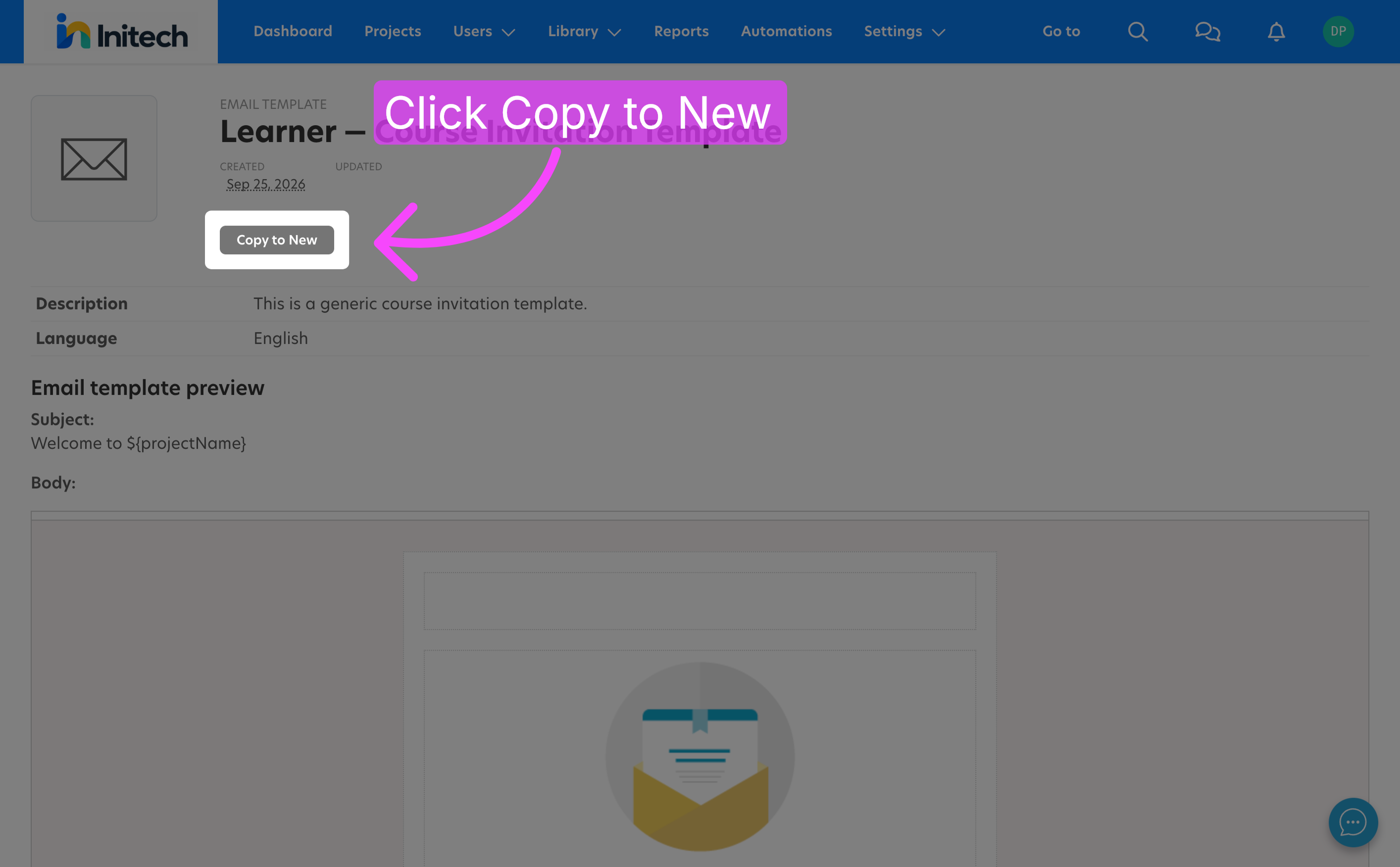
- Give the duplicated template a new name.
- Save the template.
- Open the email editor.
- Edit the content and design as needed.
- Save your changes.
Tip: Keep the relevant variables when you duplicate an existing template. Variables can automatically add information specific to the recipient or course and make the email more personal.
Customize an email template
Change an image
Images in an email template are added using an image URL.
The image must be available through a publicly accessible URL on the internet. Do not use an image that is stored behind an intranet, login, or other access restriction.
- Open the image options in the email editor.
- Enter the public URL of the image.
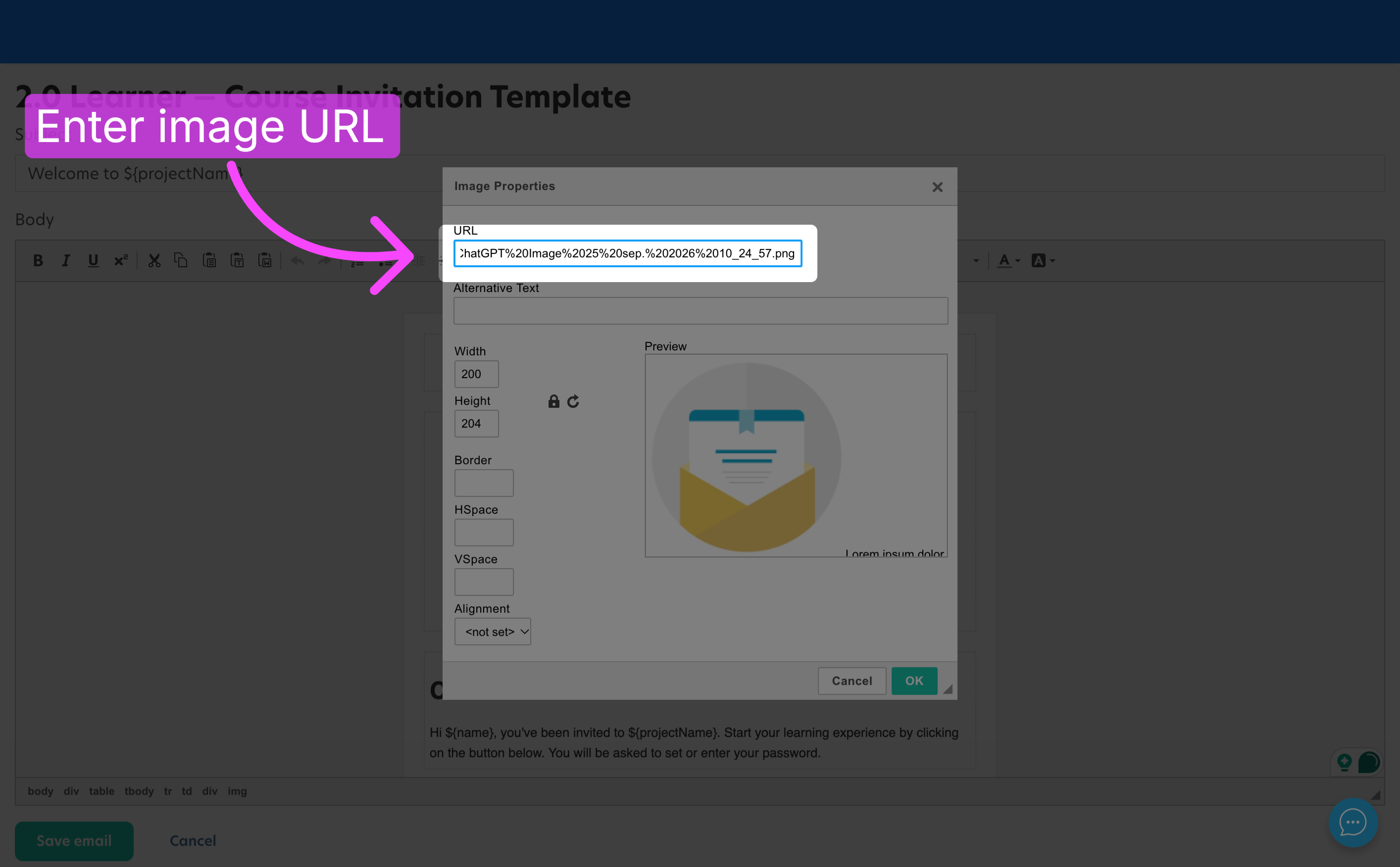
- Add alternative text that describes the image.
- Adjust the image width if needed.
- Confirm your changes.
Change the button color
You can change the color of a button by editing the HTML source of the email.
- Open the source view in the email editor.
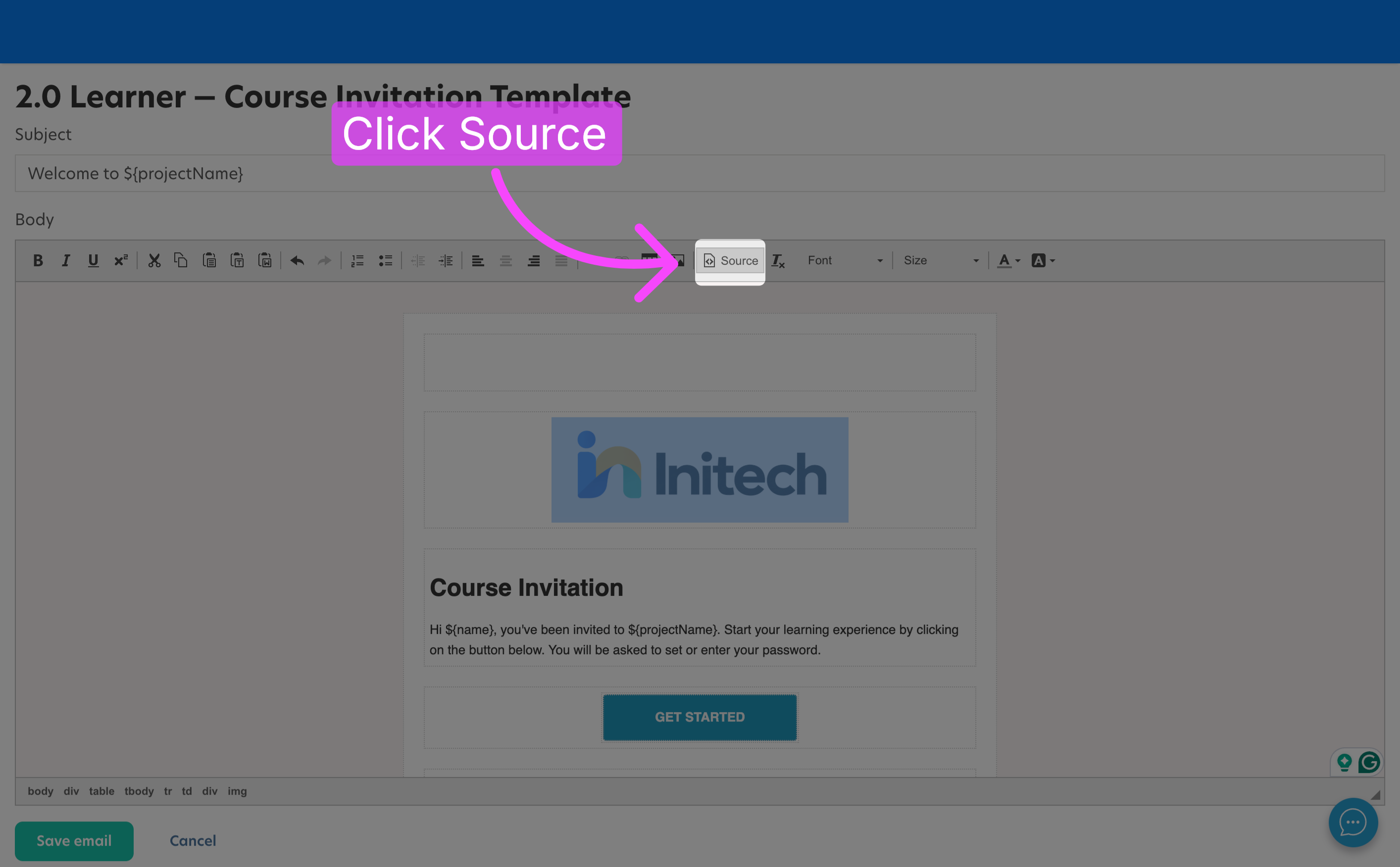
- Find the code for the button. Look for a line containing:
<td align="center" bgcolor="#XXXXXX" style="padding: 0px; border-radius:3px"><a href="${loginlink}"
- Find the hex color code in the bgcolor attribute. In this example, the current color is:
#18C3AA
- Replace only the hex color code with the color you want to use. For example:
bgcolor="#000000"
This changes the button background to black.
- Save your changes.
Important: Only change the hex color value in bgcolor when changing the button color. Do not remove or change ${loginlink} or other variables unless you intend to change their function.
Reference information
▶ Using variables in email templates
Email templates can contain variables that automatically insert information when an email is sent.
When customizing an existing template, keep the variables that are relevant to the email. They can personalize the message with information specific to the recipient or course.
For example, ${loginlink} can be used for a participation-specific login link in communications where that variable is available.
Important: Available variables can depend on the type of email. Do not assume that every variable is available in every email template.
Be careful when removing or changing variables, as this may affect the information or functionality available to the recipient.
 Svenska
 Norsk (Bokmål)