


Vad är kursmallar?
Kursmallar är återanvändbara kursstrukturer som kan användas som grund för flera projekt i Learnifier.
Vad används de till?
Använd kursmallar för återkommande kurser där samma struktur och kursmaterial används flera gånger.
För materialtyper som stöds kan ändringar som görs i kursmallen även slå igenom i projekt som redan är baserade på mallen.
Vem är det till för?
Kursmallar är tillgängliga i planerna Professional och Enterprise.
Så skapar du en kursmall
- Gå till Bibliotek > Kursmallar.
- Välj alternativet för att skapa en ny kursmall.
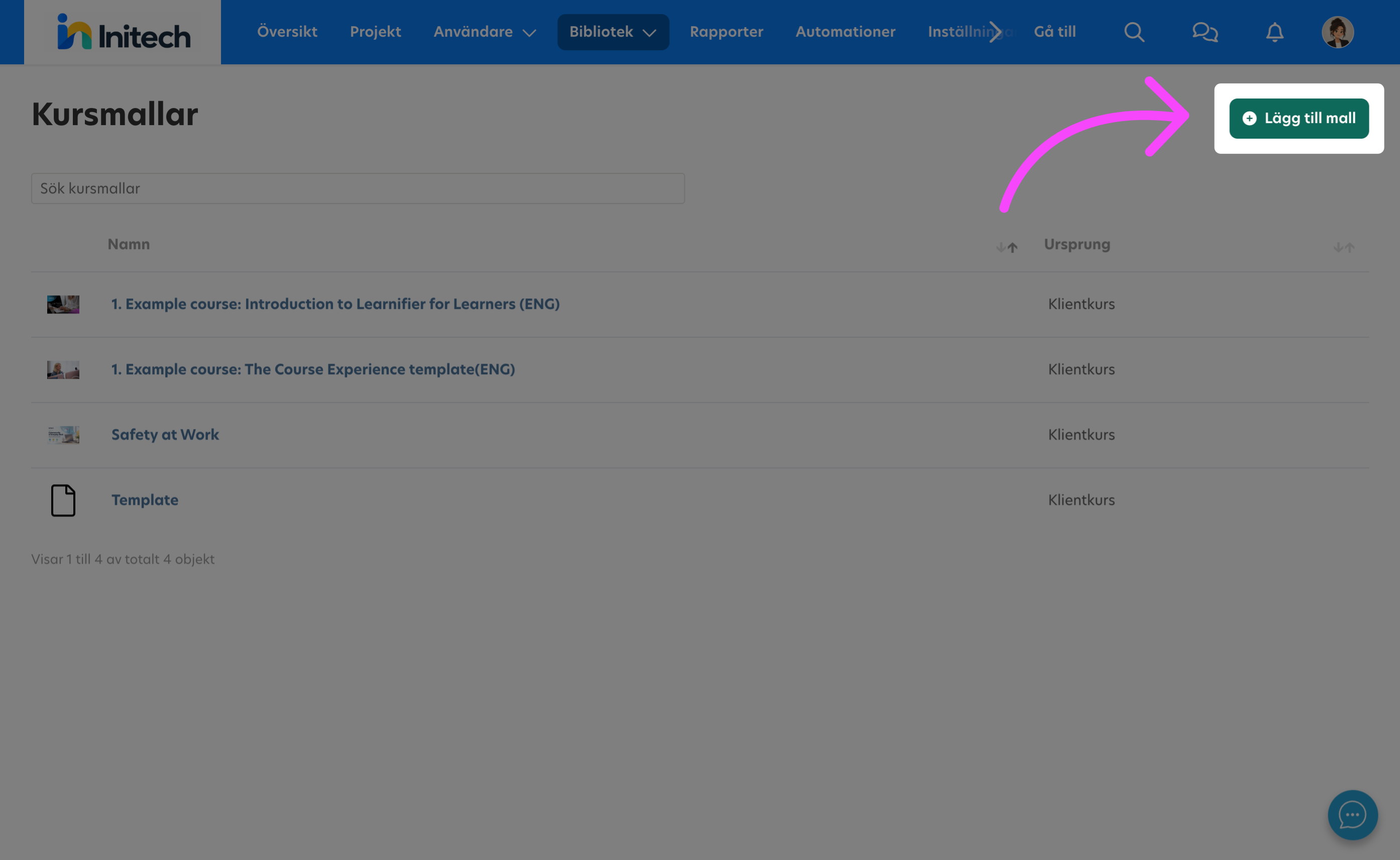
- Ange ett namn för kursmallen.
- Lägg till en beskrivning vid behov.
- Spara kursmallen.
- Öppna kursmallen och lägg till de moduler, aktiviteter, resurser och annat innehåll som du vill inkludera.
Använd material från Biblioteket
Du kan skapa material direkt i en kursmall eller använda befintligt material från Biblioteket.
Att använda material från Biblioteket är användbart när samma material ska användas i flera kursmallar.
Om exempelvis samma enkät ska ingå i flera kursmallar kan du skapa enkäten i Biblioteket och sedan använda den i respektive kursmall.
Så hanterar du en kursmall
Gå till Bibliotek > Kursmallar och öppna den kursmall som du vill hantera.
Från kursmallens översikt använder du det alternativ som motsvarar det du vill ändra:
- Redigera kursmall – uppdatera kursinnehållet, inklusive moduler, aktiviteter och material.
- Kataloginställningar – hantera hur kursen presenteras i katalogen, inklusive bild och beskrivning.
- Inställningar – hantera allmänna inställningar för kursmallen, inklusive inställningar för utgångstid.
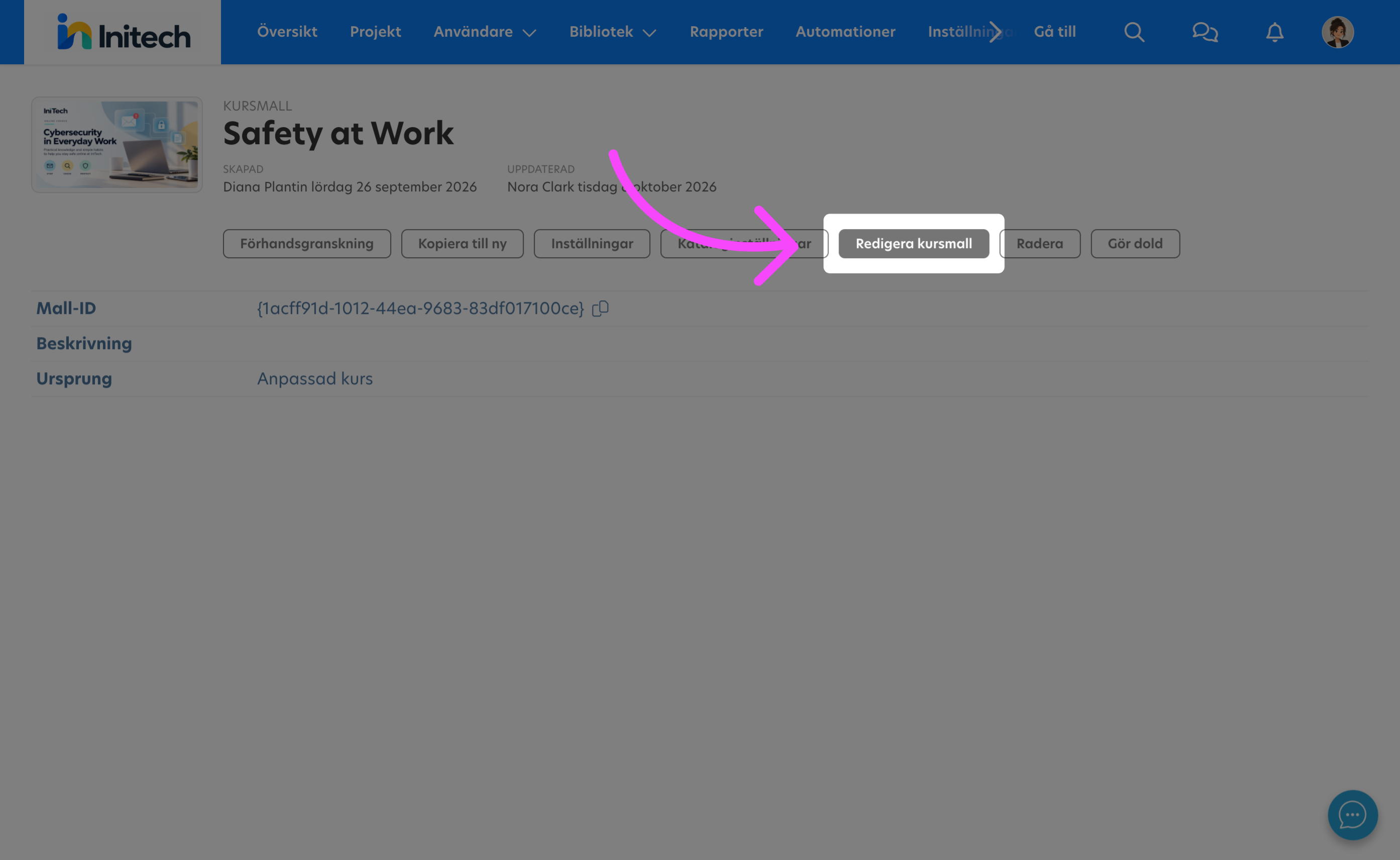
Kataloginställningar
Öppna Kataloginställningar när du vill ändra hur kursen presenteras i katalogen.
I Kataloginställningar kan du:
- Ändra katalogbilden.
- Uppdatera katalogbeskrivningen.
Spara dina ändringar när du är klar.
Inställningar
Öppna Inställningar för att hantera allmänna inställningar för kursmallen.
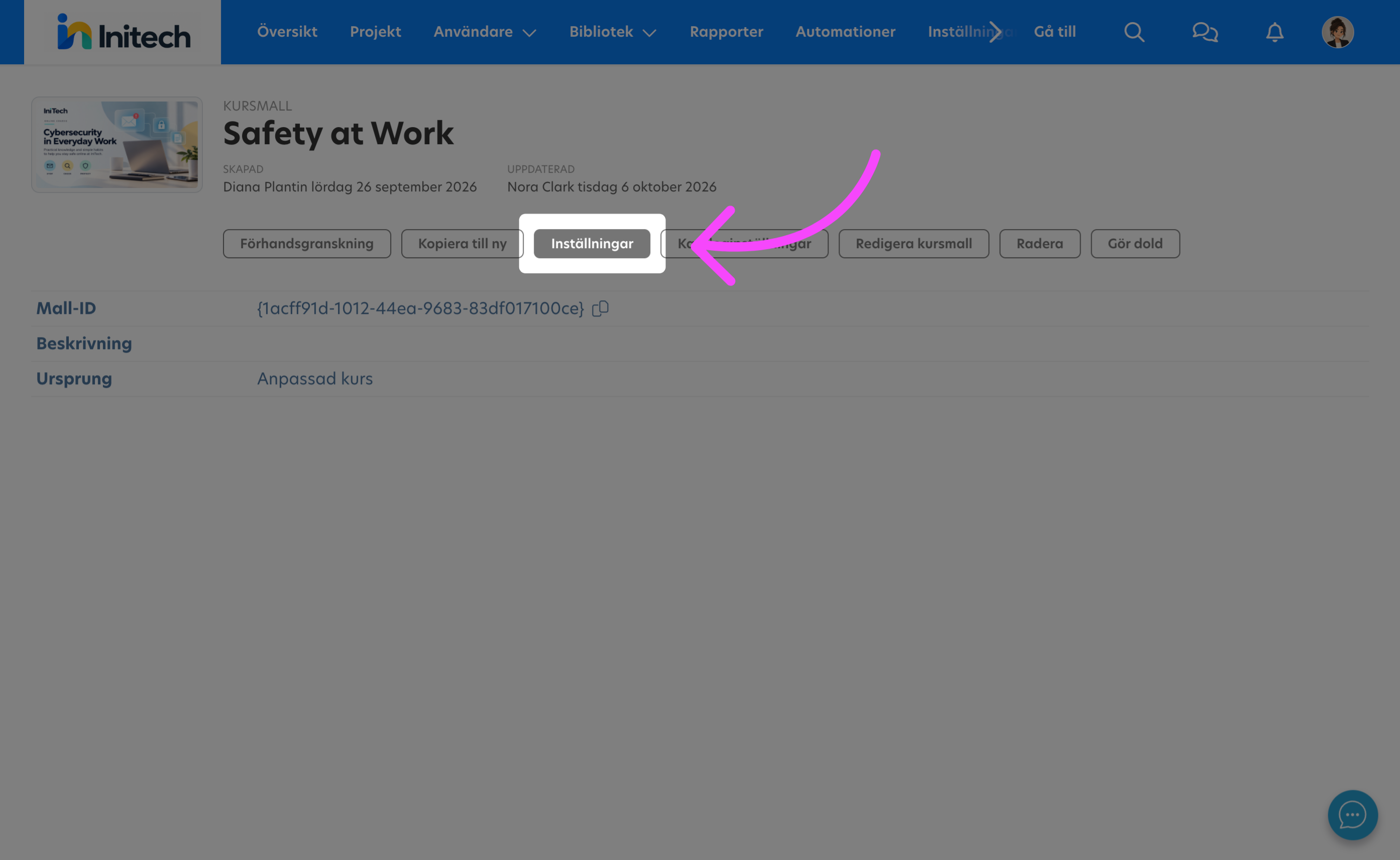
Du kan exempelvis konfigurera Expiration days för att styra kursens utgångsperiod.
- Öppna kursmallen.
- Välj Inställningar.
- Leta upp inställningen för utgångstid.
- Ange önskat antal dagar.
- Spara dina ändringar.
Så uppdaterar du kursmaterial
Hur en ändring påverkar projekt beror på vad du uppdaterar i kursmallen.
Uppdatera material i befintliga projekt
Ändringar av följande materialtyper slår igenom i projekt som är baserade på kursmallen:
- Bild
- Quiz
- Enkät
- Video
- Webblänk
- Dokument
- Flashcard
- Checkpoint
Viktigt: Redigera det befintliga materialet om du vill att ändringen ska slå igenom i projekt som redan är baserade på kursmallen. Ta inte bort materialet och lägg sedan till ett nytt material i dess ställe.
Om du exempelvis vill byta ut en bild öppnar du det befintliga bildmaterialet, redigerar det och laddar upp den nya bilden där. Om du vill uppdatera ett quiz öppnar och redigerar du det befintliga quizet i stället för att ta bort det och skapa ett nytt.
Deltagarens genomförandestatus
Viktigt: När material uppdateras i en kursmall återställs inte deltagarens befintliga genomförandestatus.
Om en deltagare redan har genomfört en aktivitet, till exempel ett quiz, och materialet senare uppdateras via kursmallen kommer deltagaren fortfarande att vara markerad som genomförd för aktiviteten.
Detsamma gäller kursen. Om en deltagare redan har fått statusen Completed återställs inte den statusen när kursmallen ändras.
Ändringar som endast påverkar framtida projekt
Andra ändringar som görs i en kursmall påverkar endast projekt som skapas från mallen efter att ändringen har gjorts.
Om du behöver innehåll som kan hanteras centralt och även uppdateras i befintliga projekt bör du överväga att använda återanvändbara moduler eller aktiviteter.
Återanvändbara moduler eller aktiviteter kan exempelvis vara mer lämpliga om du har textinnehåll som behöver förändras över tid i befintliga projekt.
Referensinformation
▶ Vilka materialtyper uppdateras i befintliga projekt?
Ändringar av följande materialtyper slår igenom i projekt som är baserade på kursmallen:
- Bild
- Quiz
- Enkät
- Video
- Webblänk
- Dokument
- Flashcard
- Checkpoint
Viktigt: Redigera det befintliga materialet om du vill att ändringen ska slå igenom i befintliga projekt. Ta inte bort materialet och lägg till ett nytt material i dess ställe.
▶ Vad händer med deltagare som redan har genomfört materialet?
Deltagarens befintliga genomförandestatus återställs inte när material uppdateras via kursmallen.
Deltagare som redan har genomfört kursen behåller också sin status Completed.
▶ När ska jag använda material från Biblioteket?
Använd material från Biblioteket när samma material ska återanvändas i flera kursmallar.
Skapa exempelvis en enkät i Biblioteket om samma enkät ska användas i flera kursmallar.
▶ När ska jag använda återanvändbara moduler eller aktiviteter?
Överväg återanvändbara moduler eller aktiviteter när innehåll behöver hanteras centralt och ändringar även ska slå igenom i befintliga projekt.
Det kan exempelvis vara användbart för textinnehåll som behöver förändras över tid.
 Svenska