


Bulk Upload lets you create multiple courses in Learnifier by uploading course information from a spreadsheet.
Use Bulk Upload when you need to create several courses at the same time instead of creating each course manually.
Bulk Upload is currently available as a Beta feature for Enterprise customers who need to create multiple projects at the same time.
How to create and publish courses using Bulk Upload
1. Open the project
Go to Projects and open the project where you want to create the courses.
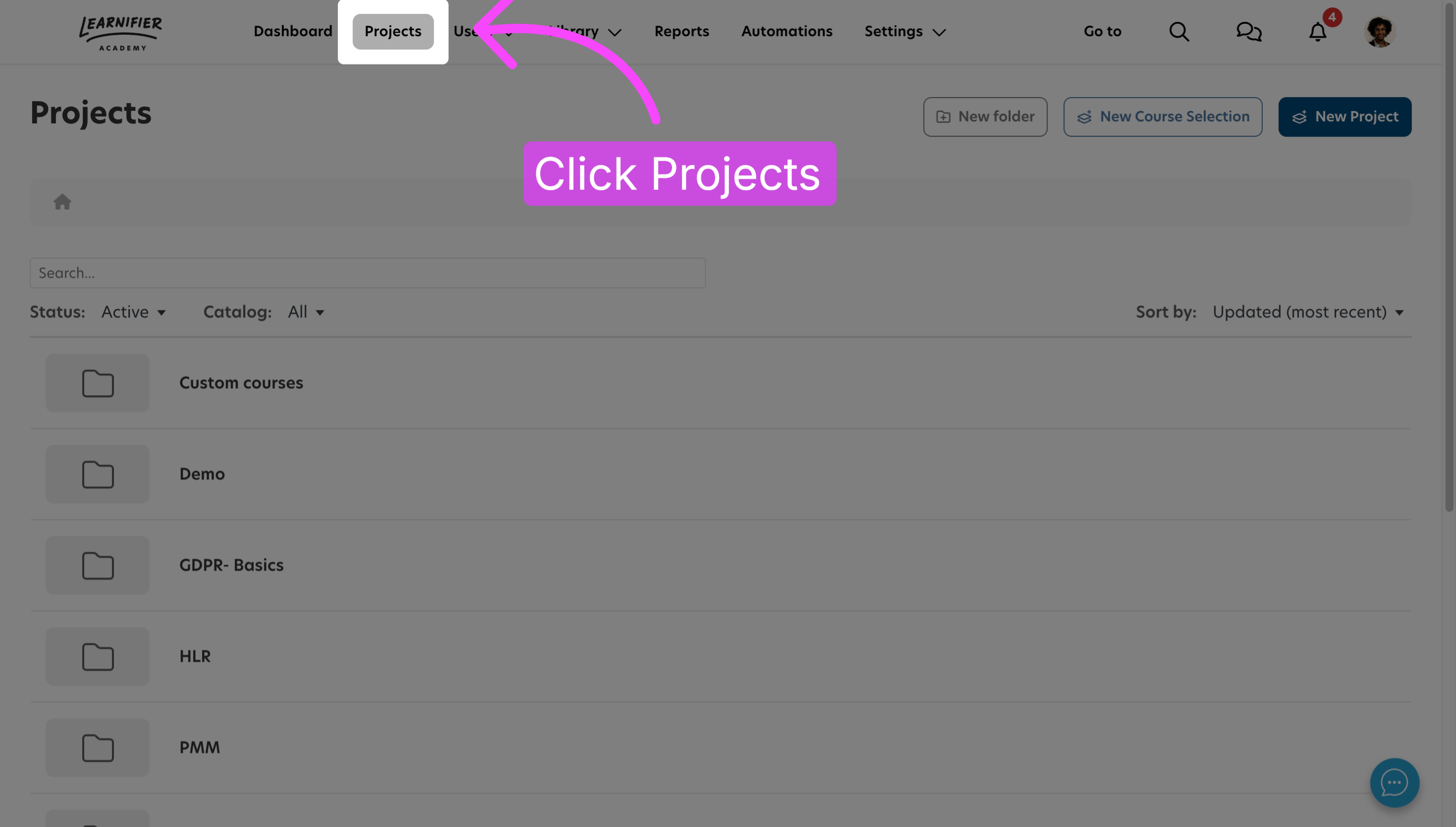
2. Start a Bulk Upload
Start the process for creating courses and select the Bulk Upload option.
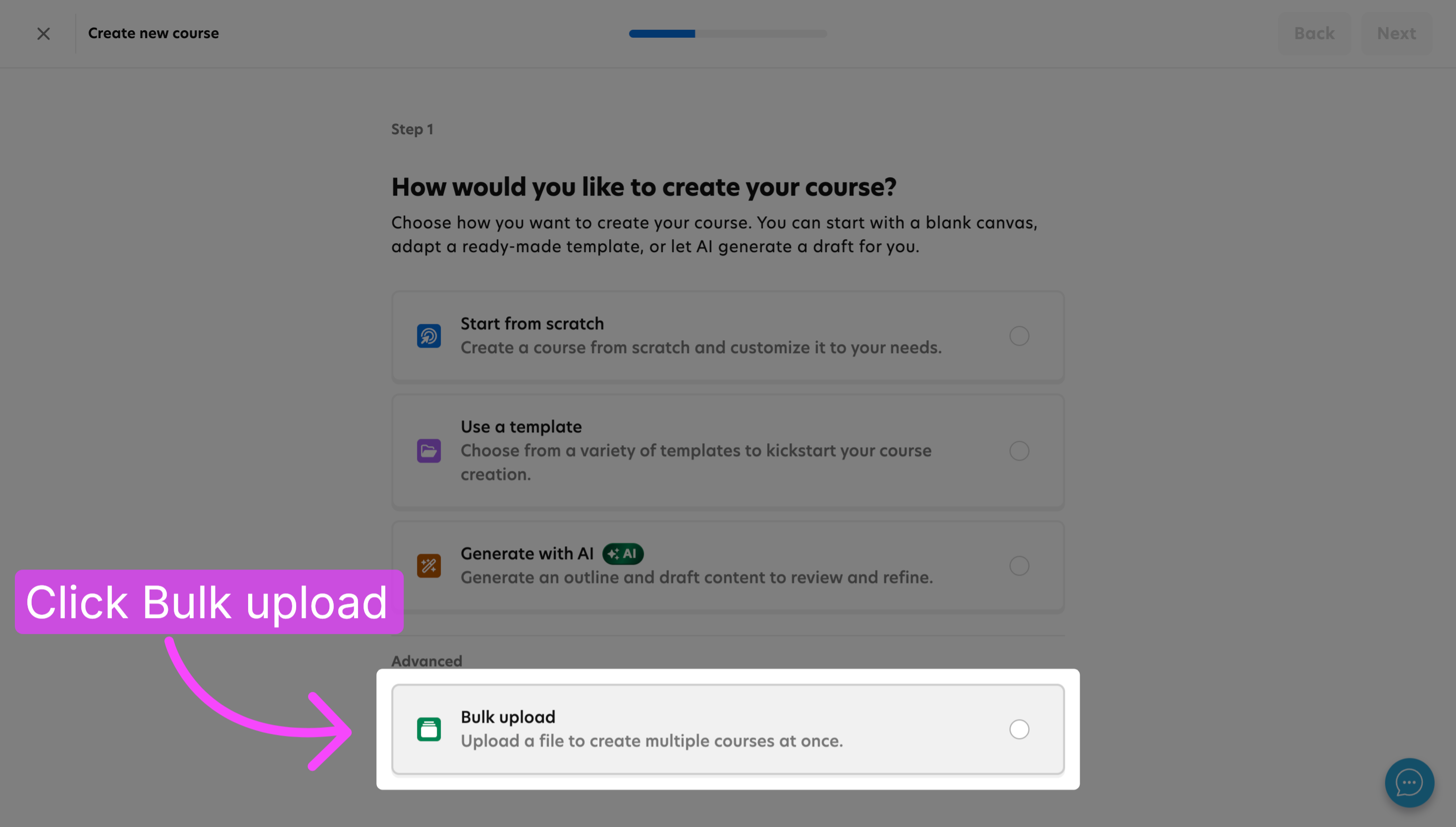
3. Download the spreadsheet template
Continue to the next step and download the empty spreadsheet template.
Use the template to prepare the course information that you want to upload.
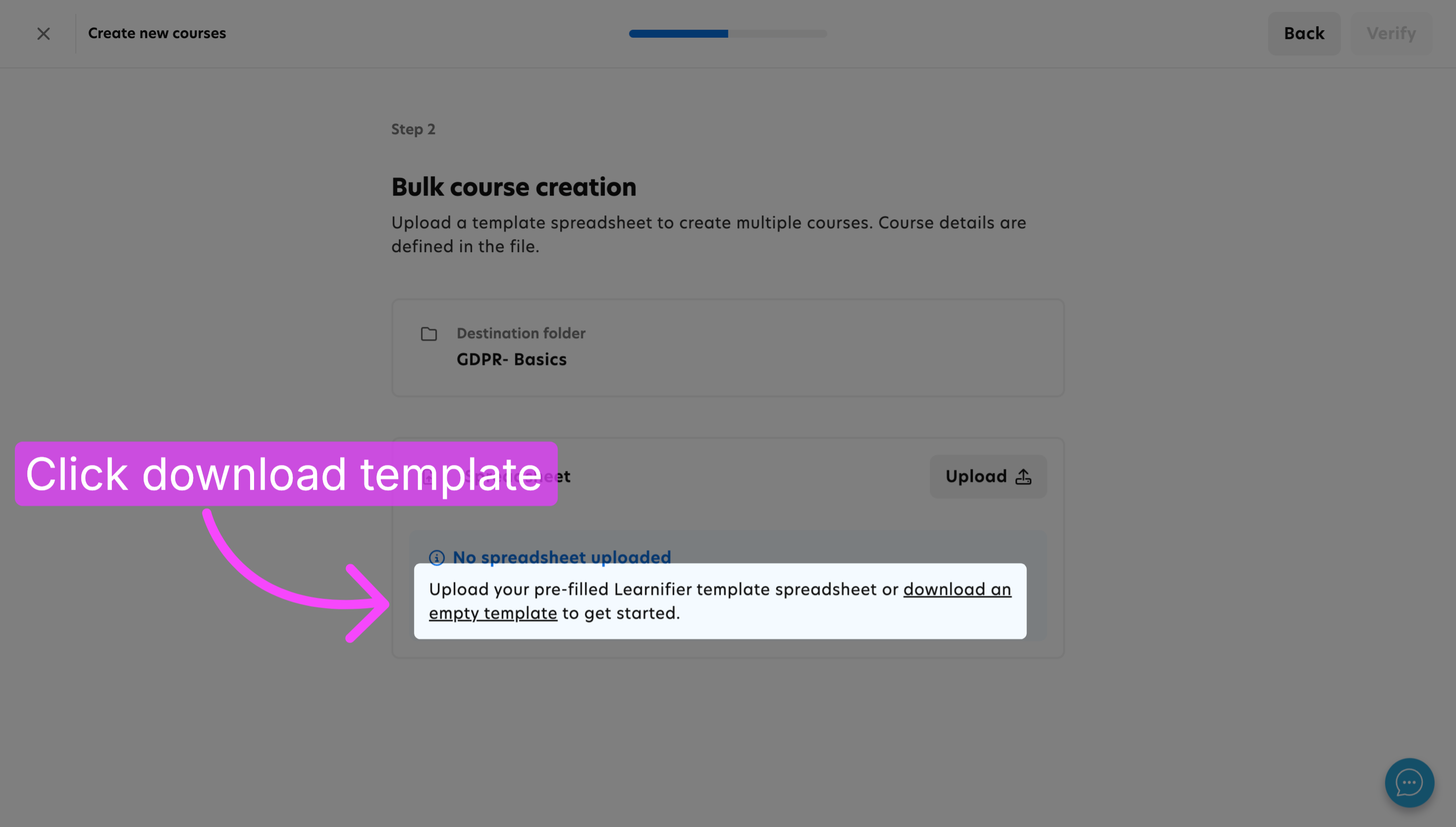
4. Fill in the spreadsheet template
Enter the course information in the spreadsheet template.
The example below shows what a completed template can look like before it is uploaded to Learnifier.
5. Upload the completed template
Save the completed spreadsheet, return to Learnifier, and upload the file.
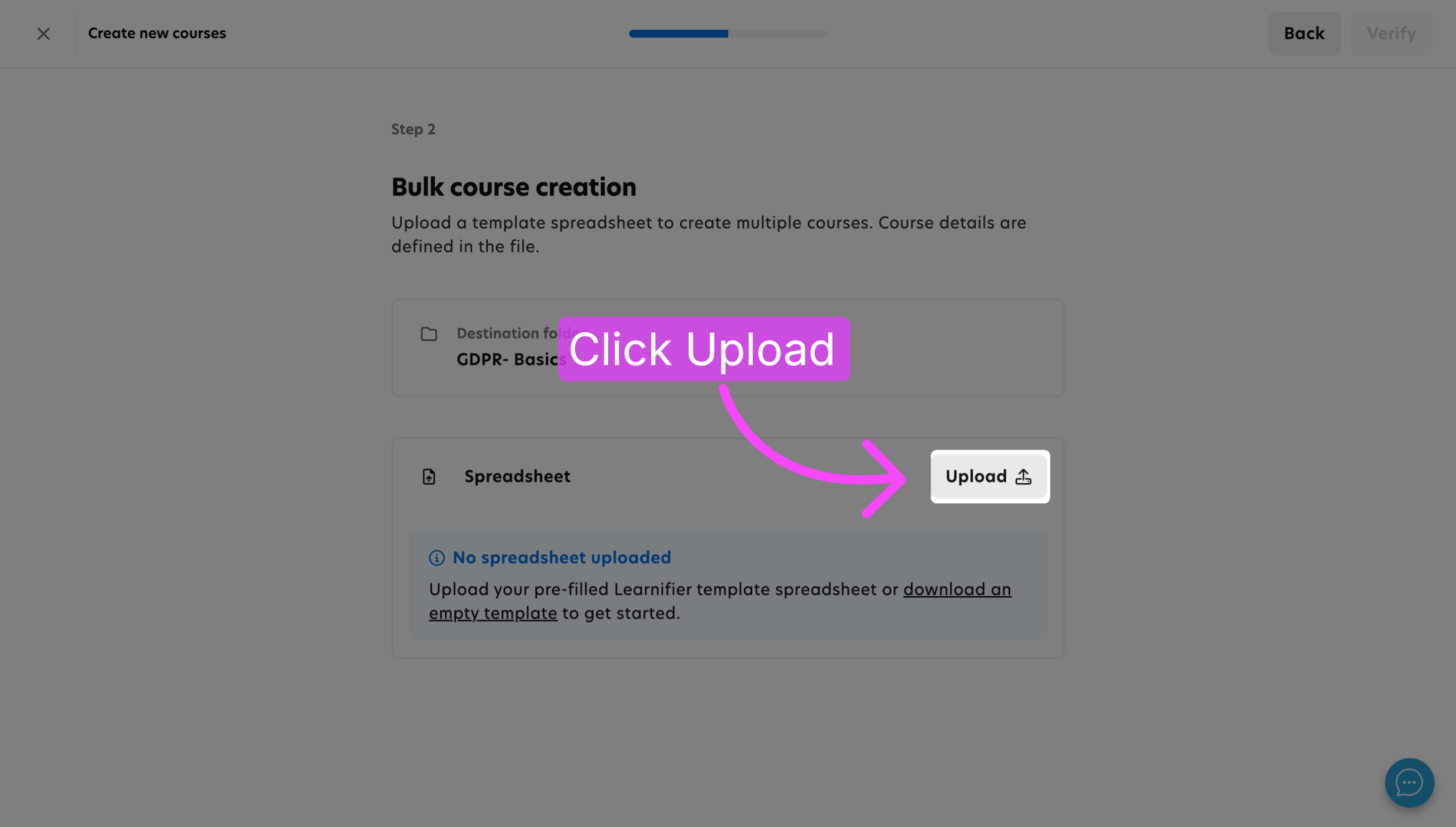
6. Verify the uploaded data
Review the uploaded spreadsheet and make sure that the course information is correct before continuing.
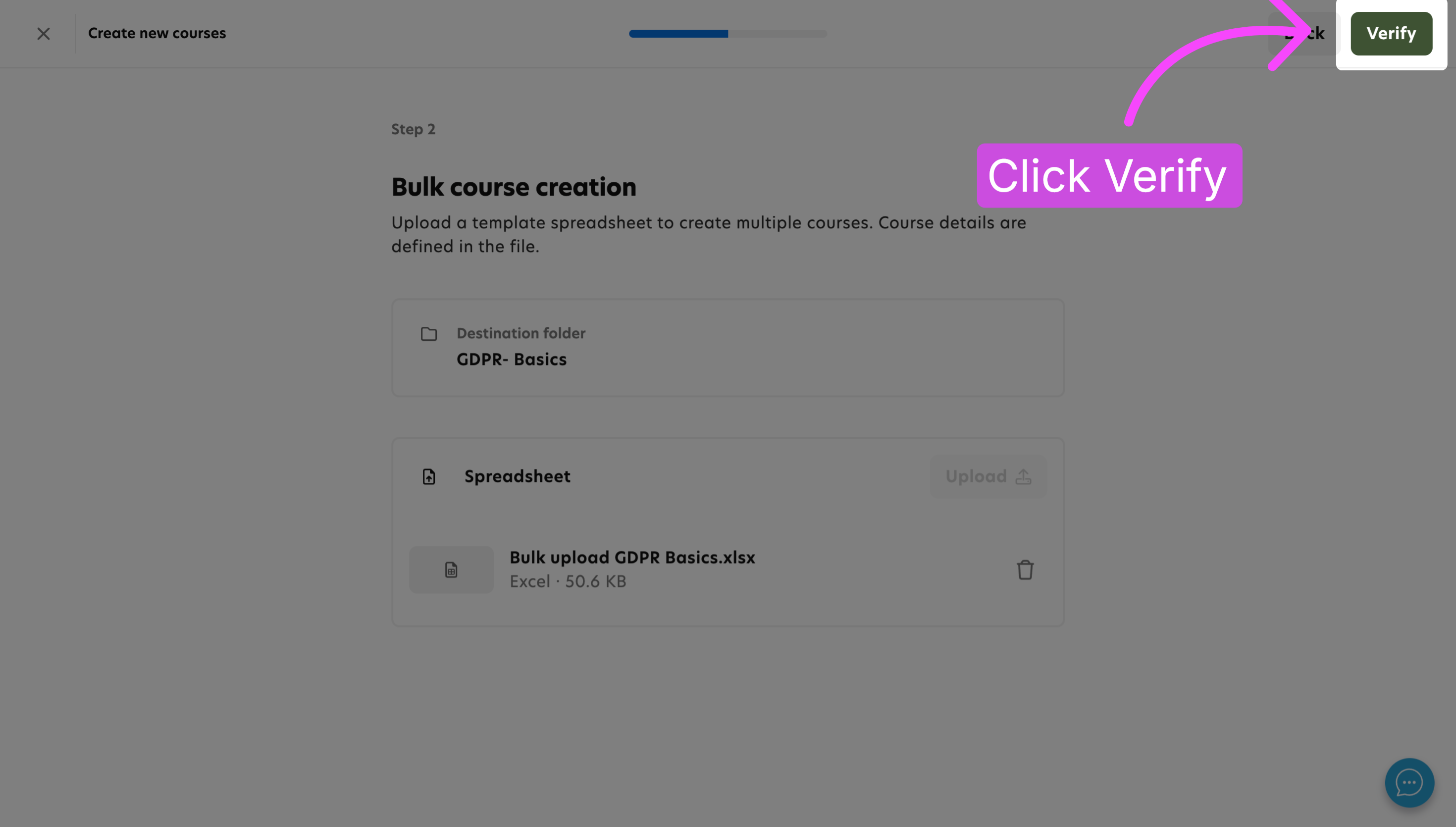
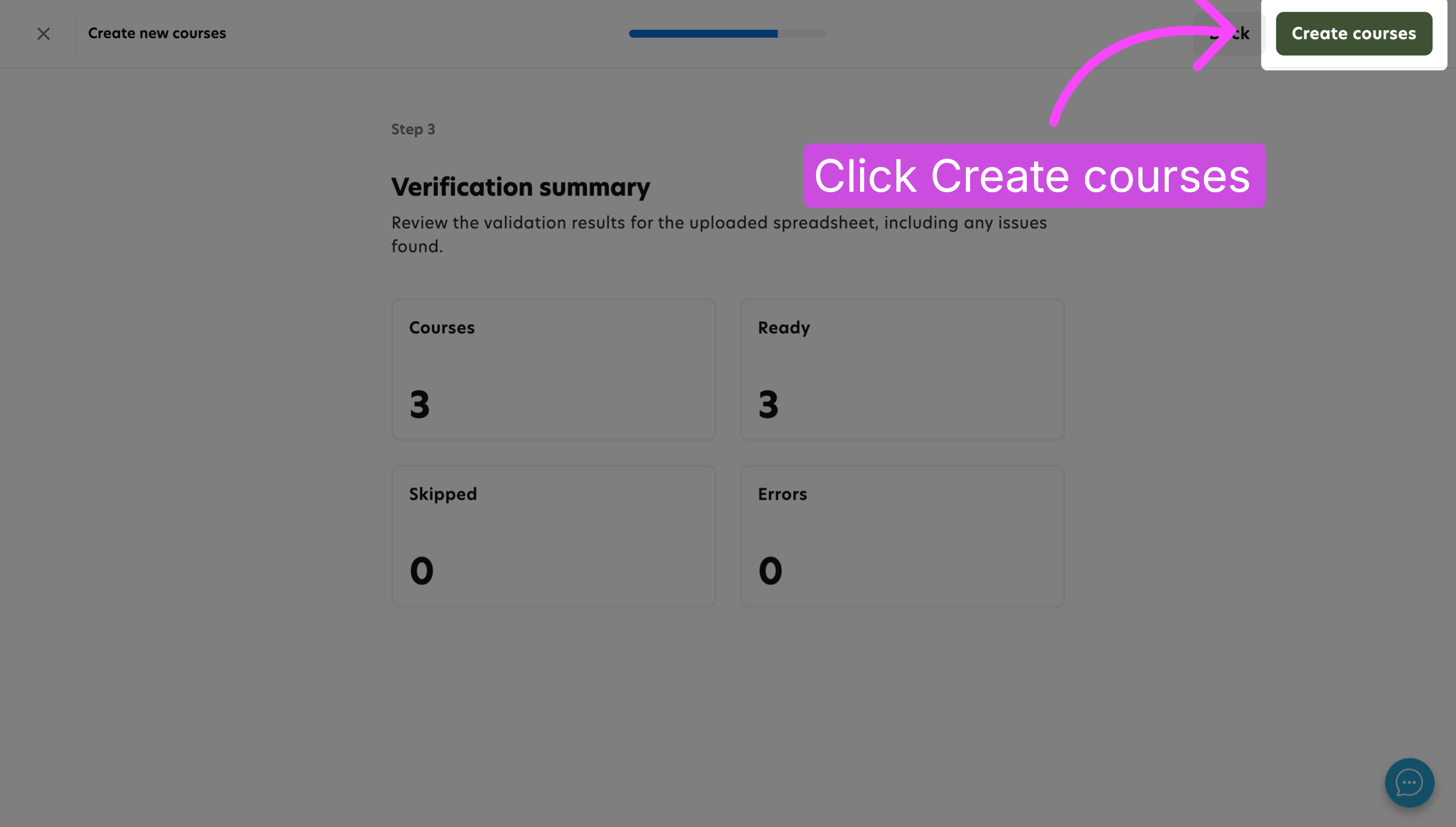
7. Create the courses
When the uploaded information is correct, create the courses from the uploaded data.
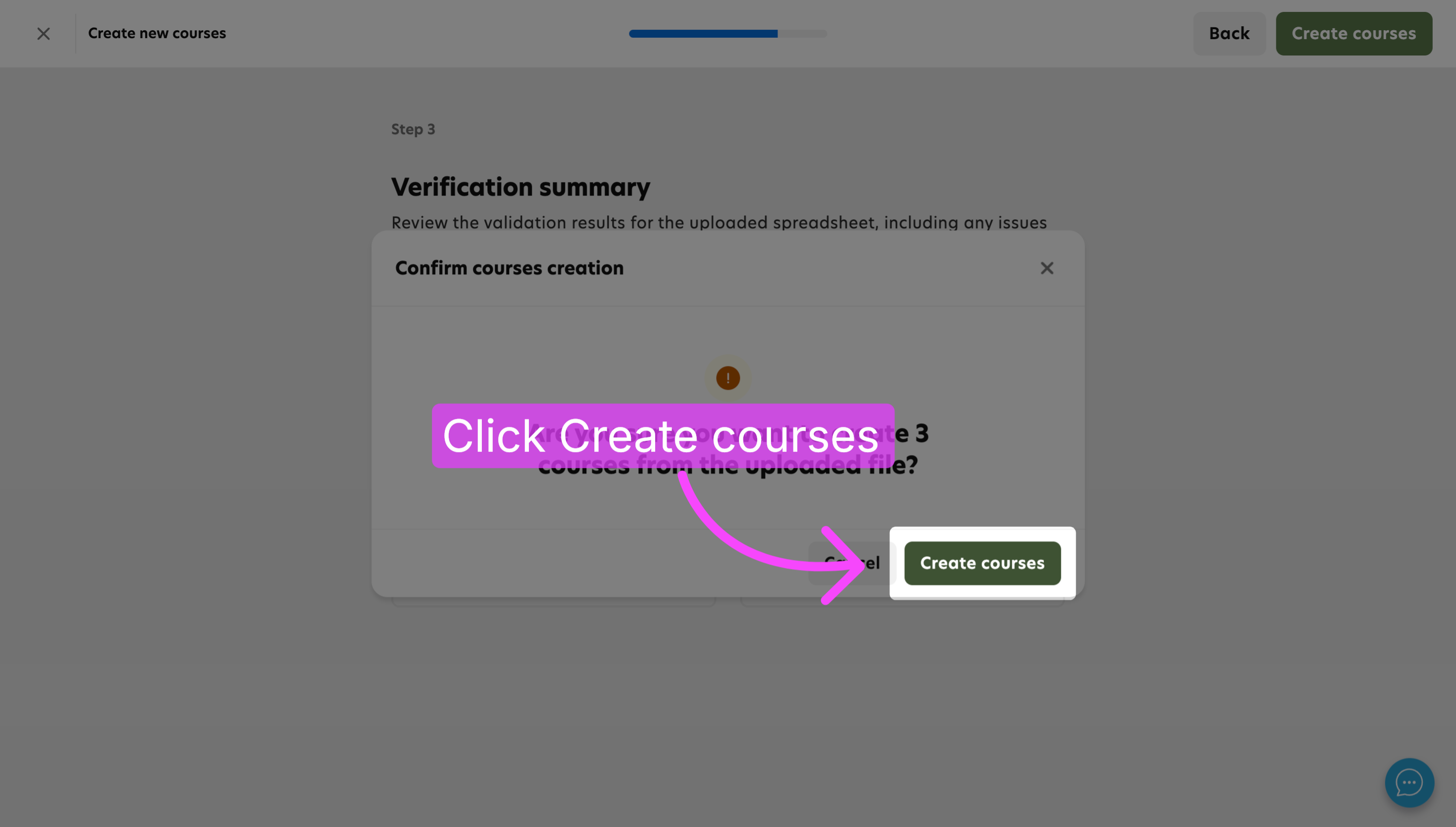
8. Confirm the course creation
Confirm the creation of the courses to complete the Bulk Upload process.
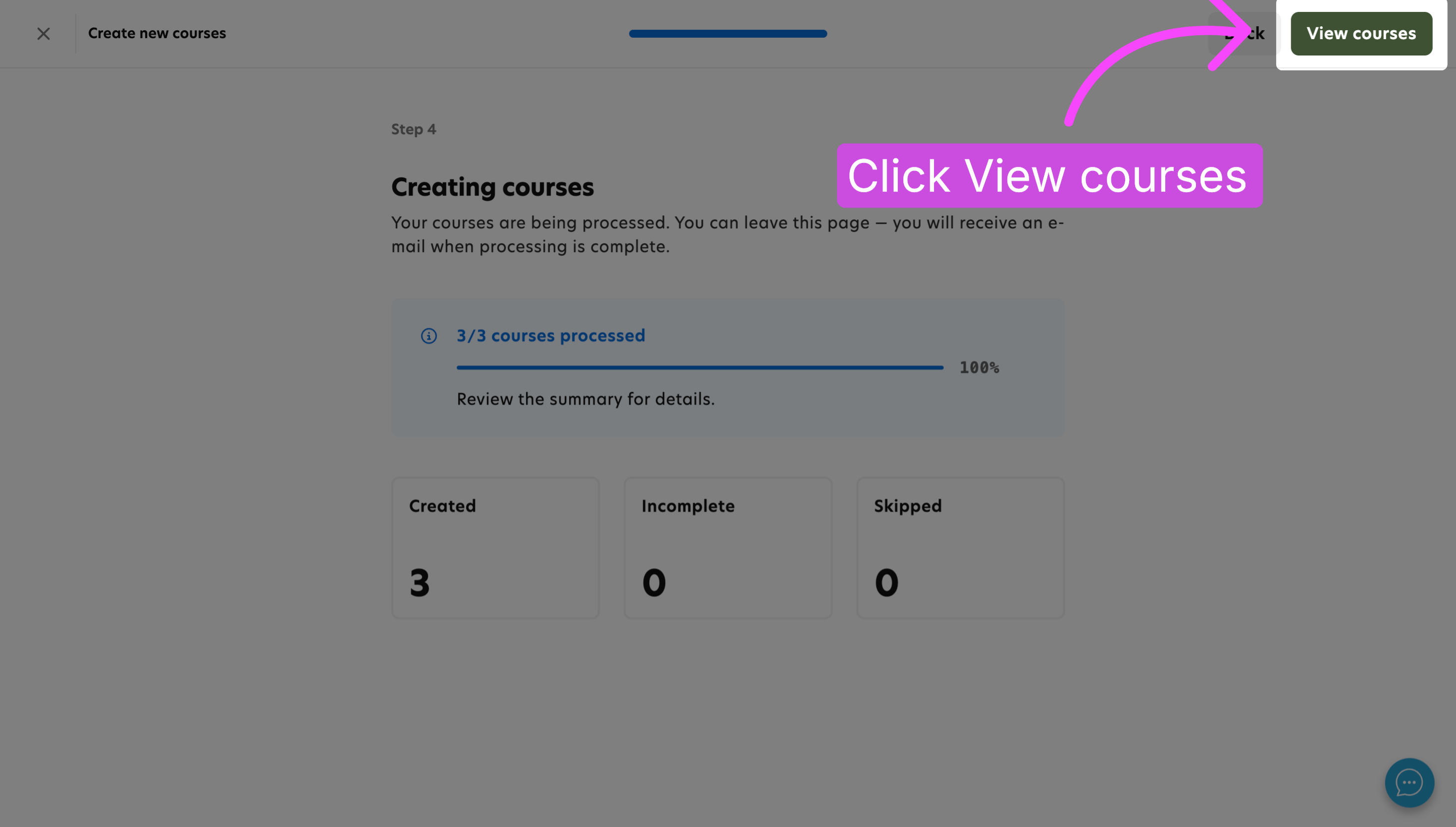
9. Review the created courses
Review the list of newly created courses to confirm that they were added successfully.
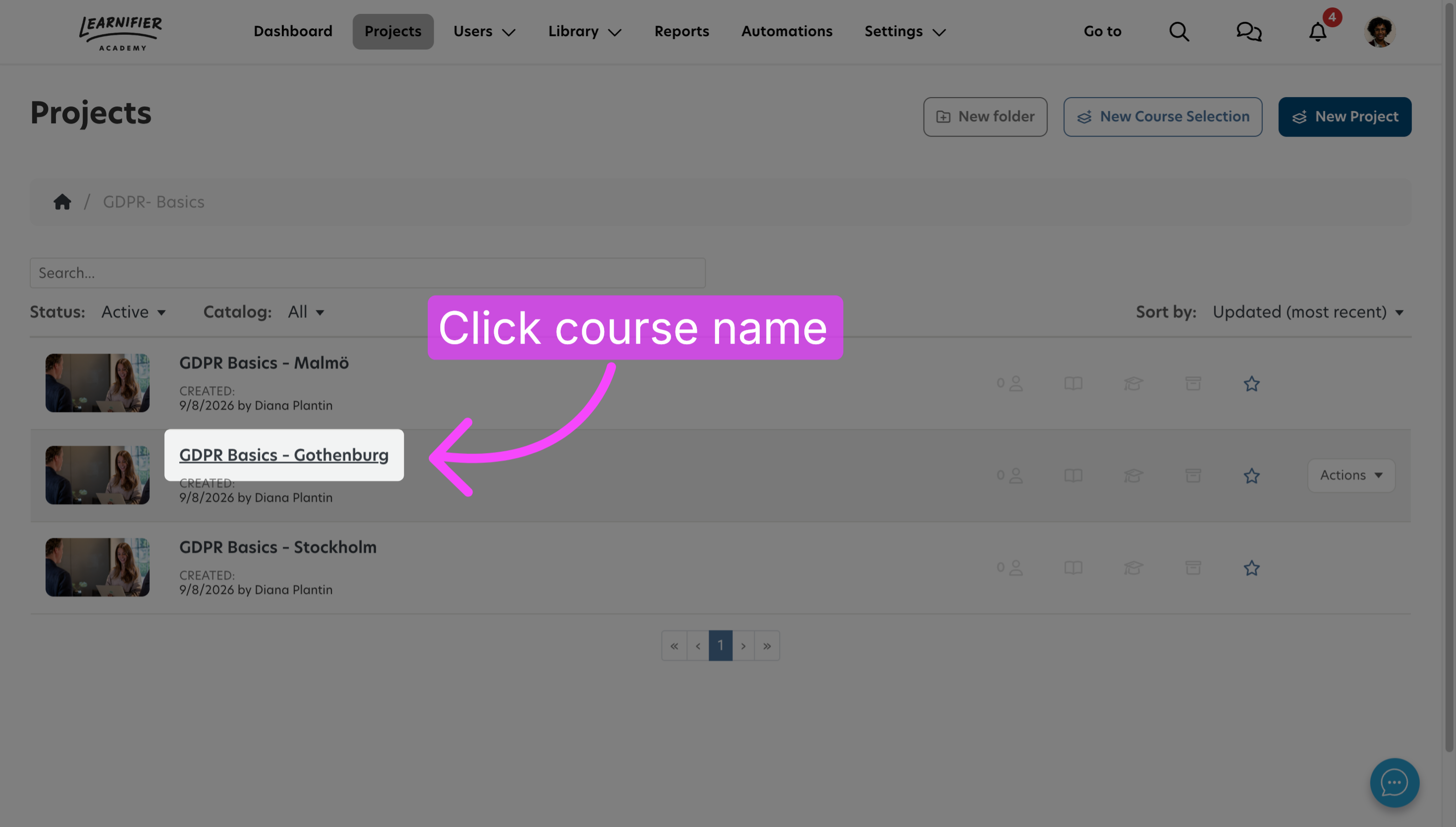
10. Open a course
Open the course that you want to review or publish.
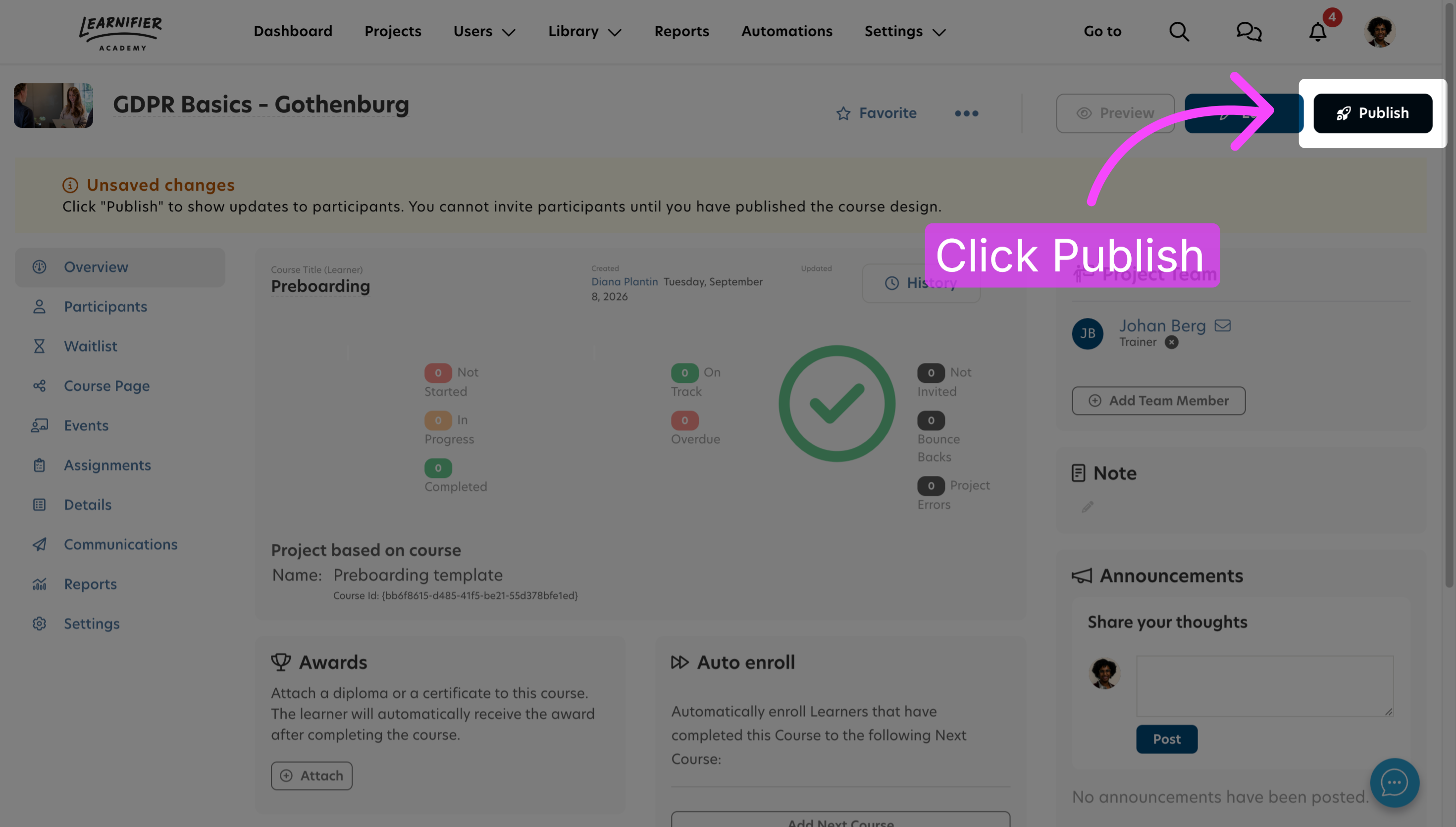
11. Publish the course
Publish the course when it is ready to be made available to learners.
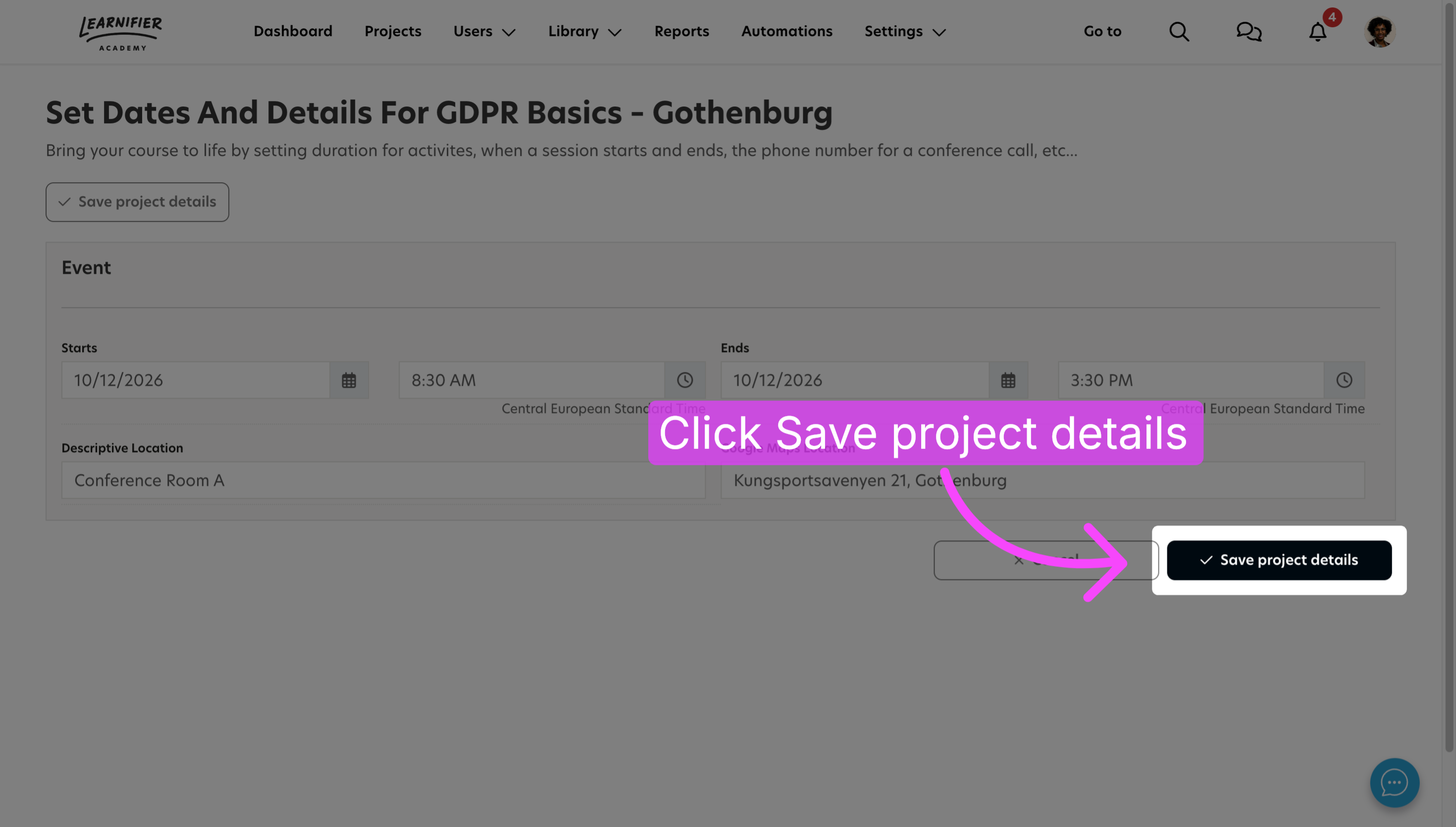
12. Save the project
Save the project to make sure that your changes are retained.
The courses have now been created using Bulk Upload. Publish any courses that should be made available to learners.
Good to know
Before uploading
Keep the following in mind when preparing and uploading your spreadsheet:
- One row creates one project. The first row contains the column headers.
- Do not change the order of the standard columns. Custom project fields, if available, are added after the standard columns.
- Values from the course template can be reused. If a supported value already exists in the selected course template, the corresponding spreadsheet cell can be left empty. If you enter a value in the spreadsheet, it overrides the value from the course template. This also applies to the participant limit.
- Event information is applied to the first classroom event only. Start date and time, end date and time, address, and place update the first classroom event in the project. The selected course template therefore needs to contain a classroom event for this information to be applied.
- Project titles must be unique. If an upload is only partially completed, correct the spreadsheet and upload it again. Projects that have already been created are skipped as long as their project titles remain unique.
- Check your data before uploading. Course Template IDs must be valid, participant limits must be positive whole numbers, and dates must use a supported format.
- Instructor names and email addresses should match one-to-one. If an instructor email already belongs to a Learnifier user, the existing user is used. If it does not exist, a new basic user may be created when a corresponding instructor name is provided.
 Svenska